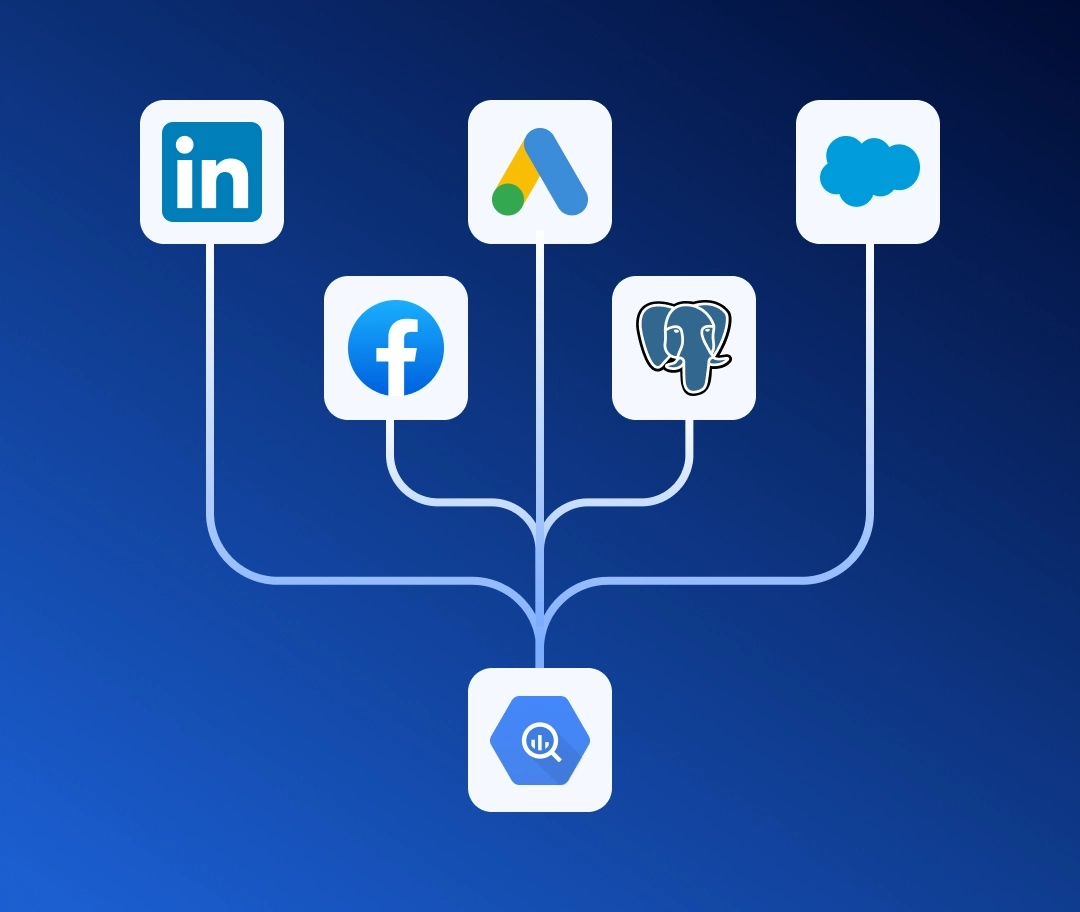



One of the first and highest-priority tasks for any data-driven team is automating marketing reporting. Manually collecting metrics eats up hours of work, introduces errors, and slows down decision-making.
In this guide, I'll show you how to reliably automate the export of data from Meta Ads to Google BigQuery. But more importantly — we'll do it in a way that serves the interests of two often-conflicting teams: data engineers and marketing managers.
Most of the time, this conflict comes down to two sets of requirements:
- Marketing managers need fresh, granular data right now. They want dashboards to load as fast as possible, and data that lets them drill down to the performance of individual ad creatives.
- Data engineers care about stability. They need clear visibility into the cost of the data architecture, scalability, and full control over pipelines.
Renta lets you manage data exports from thousands of Meta Ads accounts with an update interval of every 15 minutes. Data pipelines can be managed through a no-code interface or via data orchestration systems like Airflow or Dagster.
Before we move on to creating a data pipeline, let's take a closer look at how the Meta Ads API works.
How is the Meta Ads insights API structured?
Meta Ads Insights API contains only statistics data for various objects within an ad account (such as campaigns or creatives).
However, this data is not sufficient on its own, as it does not include metadata such as moderation statuses or targeting settings.
When building a data warehouse for Facebook Ads reporting, it is architecturally correct to split data into four entity types: statistics, creative metadata ads, ad set metadata adsets, and campaign metadata campaigns.
| Table (Entity) | Description and data composition |
|---|---|
| Ad statistics | The primary metrics table. Contains impressions, clicks, spend, leads, and other conversions broken down by object identifiers and UTM parameters. |
| Ad campaign metadata | Top-level structural data. Stores global campaign settings, buying type, and targeting objectives. |
| Adset metadata | Ad set-level details. Includes budgets (daily_budget, lifetime_budget), optimization settings, and statuses. |
| Ad metadata | Creative-specific information. Includes moderation statuses and preview links (preview_shareable_link). |
Designing the data schema for Meta Ads
In practice, Meta Ads objects change constantly on the marketing team's side. Managers can rename a campaign, update ad set settings, or change a creative's status at any time.
If you store names and attributes in one large table alongside statistics, then any campaign rename will require you to rewrite the entire historical dataset for past periods, just to update a single text field (and if you don't, marketing will start reporting that their numbers don't add up).
At the same time, if the statistics table stores only IDs, and the current names and attributes are kept in separate metadata tables, you get an incredibly flexible and reliable system.
In practice, this works as follows: metadata tables are simply overwritten in full on each update (full refresh) and always contain the latest, most current version of attributes. When a marketer needs a report in a BI system, data engineers simply JOIN the heavy statistics table by ID against the lightweight, up-to-date metadata tables.
The statistics table, in turn, is updated incrementally with a fixed recalculation period (in Renta, we call this the overwrite period). This is necessary to capture data that may arrive with a delay — for example, conversions within the attribution window or ad budget adjustments.
How to set up data replication
To avoid building each data stream manually, Renta provides Pre-built Templates. They automatically create pipelines with the correct data schema and keep data up to date in Google BigQuery.
All you need to do is select the Pre-built templates integration type and specify the basic settings:
| Setting | Description |
|---|---|
| Ad accounts | The ad accounts from which data will be pulled. |
| Templates | The template itself — Facebook Ads Performance report. |
| Date Range | The period for the initial historical data export. |
| Schedule | The frequency of regular updates (for example, every 15 minutes). |
After that, Renta will create four interconnected pipelines, apply Meta attribution settings, set a 7-day overwrite period for statistics, and start the sync. As a result, you get four tables of clean, ready-to-use data.
Overall, the entire setup in the Renta interface comes down to three steps:
- Connect the Facebook ad account (data source).
- Add Google BigQuery (data warehouse).
- Launch the pipeline template.
Let's get started.
Connecting the Facebook Ads source
First, you need to grant Renta access to your ad accounts.
Go to Connections → Catalog in the left sidebar of Renta.


In the Advertising category, find the Facebook Ads card.


Click Log in to your Facebook Ads account. The platform will redirect you to the Facebook login page (using the secure OAuth protocol).


Review the requested permissions and allow Renta to access your account statistics (click Continue or Reconnect).


Give the connection a meaningful name (it will only appear in the Renta interface) and click Save.


Connecting the Google BigQuery warehouse
The source is ready. Now let's tell Renta where to store the collected data.
Go to the Destinations section and click the + Add destination button in the top-right corner.


In the catalog, find and select Google BigQuery.


Select an authorization method. For production use, we recommend GCP Service Account — click Upload a Service Account JSON file and upload your Google Cloud key. For a quick setup, you can choose Authenticate with Google Account and simply sign in with your personal Google account.


Fill in the connection configuration:
| Setting | Description |
|---|---|
| Destination name | The name for this warehouse inside Renta (e.g., Marketing DWH). |
| BigQuery project | Your Google Cloud project ID (auto-filled when a JSON key is uploaded). |
| BigQuery dataset | Select an existing dataset or create a new one. |
| Data Location | The storage region (if the dataset doesn't exist, Renta will automatically create Renta_dataset in the specified region). |
Click Save.


Done. The destination list will show the new BigQuery connection with the status Active.


Configuring the pipeline
Source and warehouse are connected — all that's left is to link them via a pre-built template.
In the left sidebar (under Pipelines), click the New pipeline button.


On the Connect your data source screen, find Facebook Ads in the list and proceed (click Next step).


Specify the Facebook ad account connection we created in the first step. Click Next step.


On the Connect your warehouse screen, find Google BigQuery in the catalog and click Next step.


Click on the database connection configured in Step 2 and proceed.


On the Specify Facebook Ads pipeline settings screen, fill in the first configuration block:
| Parameter | Action |
|---|---|
| Integration type | Select Pre-built templates to activate the pre-built data view mode. |
| Ad accounts | Select the required ad account from the list. |
| Templates | Select Facebook Ads Performance report. |


Scroll down to the Date Range block. Set the start and end dates (Date start / Date end) for the initial historical data export.


In the Schedule block, select the Interval type and set the update frequency (for example, 1 Hour(s)). Click the Create pipeline button.


Done! Renta will instantly create the four required data streams and begin replicating data to Google BigQuery.
To monitor the replication progress, go to the Pipelines section. Here, all created streams are listed with their current statuses (e.g., In progress), the names of the generated tables, and the time of the last sync.


After the initial load completes, you can open the Google BigQuery console to verify that all four tables have been created and the data is ready to use.
Table structure in Google BigQuery
Once Renta finishes the initial export, four tables will appear in your dataset. Below is a detailed description of the fields for each of them, so you can easily navigate the data when writing your own queries.
Ad statistics
This is the primary table containing daily performance metrics. It is updated incrementally with the configured overwrite period.
| Field | Description |
|---|---|
| account_currency | The currency of the ad account. |
| account_id | The unique identifier of the ad account. |
| account_name | The name of the ad account. |
| ad_id | The unique identifier of the ad. |
| ad_name | The name of the ad. |
| adset_id | The unique identifier of the ad set. |
| adset_name | The name of the ad set. |
| campaign_id | The unique identifier of the ad campaign. |
| campaign_name | The name of the ad campaign. |
| clicks | All clicks on the ad, including link clicks and interactions. |
| impressions | The number of times the ad was shown on screen. |
| spend | The total amount spent on advertising in the account's currency. |
| reach | The number of unique users who saw the ad. |
| frequency | The average number of times each user saw the ad. |
| inline_link_clicks | Clicks on links leading to external resources. |
| date | The date for which the data is reported. |
| date_start | The start date of the reporting period. |
| utm_source | Traffic source. |
| utm_medium | Traffic type. |
| utm_campaign | The campaign name in UTM parameters. |
| utm_content | Ad content in UTM parameters (creative). |
| utm_term | Keyword in UTM parameters. |
| lead | The total number of leads attributed to the ad. |
| onsite_conversion.lead_grouped | The number of leads collected via Facebook Lead Ads forms. |
Campaign metadata
Contains top-level settings and current statuses of ad campaigns.
| Field | Description |
|---|---|
| id | The unique identifier of the campaign. |
| account_id | The identifier of the ad account. |
| bid_strategy | The bidding strategy (e.g., LOWEST_COST_WITHOUT_CAP). |
| buying_type | The buying method (Auction, Reserved). |
| created_time | The date and time the campaign was created. |
| daily_budget | The average daily budget of the campaign. |
| effective_status | The actual current status of the campaign. |
| name | The display name of the campaign. |
| objective | The primary campaign objective (e.g., Traffic, Awareness). |
| start_time | The scheduled start time of the campaign. |
| status | The current operational status of the campaign. |
| stop_time | The scheduled end time of the campaign. |
| updated_time | The date and time of the last update. |
Adset metadata
This table stores detailed configurations for your ad sets, including budgets and optimization settings.
| Field | Description |
|---|---|
| account_id | The identifier of the ad account. |
| campaign_id | The ID of the parent campaign. |
| id | The unique identifier of the ad set. |
| name | The display name of the ad set. |
| adlabels | Ad labels associated with the ad set. |
| bid_amount | The maximum bid per result. |
| billing_event | The event for which you are charged (impressions, clicks). |
| budget_remaining | The remaining daily or lifetime budget. |
| daily_budget | The average daily budget of the ad set. |
| lifetime_budget | The total budget for the entire lifetime of the ad set. |
| configured_status | The status set by the user. |
| effective_status | The actual current status of the ad set on the platform. |
| status | The current operational status. |
| created_time | The time the ad set was created. |
| updated_time | The time of the last update. |
| start_time | The scheduled start time of delivery. |
| end_time | The scheduled end time of delivery. |
| optimization_goal | The event toward which optimization is directed. |
| pacing_type | The method of distributing the budget over time. |
| frequency_cap | The cap on how many times one user sees the ad. |
Ad metadata
This table contains information about specific creatives, their moderation statuses, and preview links.
| Field | Description |
|---|---|
| id | The unique identifier of the ad. |
| account_id | The identifier of the ad account. |
| adset_id | The ID of the parent ad set. |
| campaign_id | The ID of the parent campaign. |
| name | The display name of the ad. |
| configured_status | The status set in the ad account. |
| effective_status | The actual delivery status of the ad. |
| status | The current delivery status. |
| created_time | The time the ad was created. |
| updated_time | The time of the last update. |
| preview_shareable_link | A link for previewing the creative. |
| conversion_domain | The domain where conversions are expected. |
| ad_review_feedback | Feedback from Meta's review system. |
Building a data mart in Google BigQuery
Now that the data is distributed across separate tables, we'll join it into a single flat structure (Data Mart). This eliminates the need to configure complex relationships and calculated fields on the BI tool side.
Below is a SQL query that joins statistics with the current names of campaigns, ad sets, and ads.
SELECT
    stats.date,
    stats.account_id,
    stats.campaign_id,
    campaign.name AS campaign_name,
    campaign.objective AS campaign_objective,
    stats.adset_id,
    adset.name AS adset_name,
    adset.daily_budget,
    stats.ad_id,
    ad.name AS ad_name,
    ad.effective_status AS ad_status,
    stats.impressions,
    stats.clicks,
    stats.spend,
    stats.lead,
    stats.onsite_conversion_lead_grouped AS lead_forms,
    stats.utm_source,
    stats.utm_medium,
    stats.utm_campaign,
    stats.utm_content,
    stats.utm_term
FROM
    `my-gcp-project.Renta_dataset.fb_ads_statistics_1772211619` AS stats

-- Join ad metadata
LEFT JOIN
    `my-gcp-project.Renta_dataset.fb_ads_metadata_1772211619` AS ad
        ON stats.ad_id = ad.id

-- Join ad set metadata
LEFT JOIN
    `my-gcp-project.Renta_dataset.fb_ads_dataset_metadata_1772211619` AS adset
        ON stats.adset_id = adset.id

-- Join campaign metadata
LEFT JOIN
    `my-gcp-project.Renta_dataset.fb_ads_campaign_metadata_1772211619` AS campaign
        ON stats.campaign_id = campaign.id
Running this query produces a structured dataset where each row contains both detailed statistics and the current names of all advertising objects.


The resulting data mart is fully ready to use. You can connect it to Looker Studio, Power BI, or Tableau and immediately start building interactive reports for marketing performance analysis.
How to customize the data schema
The template defines the base architecture, but it can be modified. If you need specific metrics for your reports, any of the four created pipelines can be easily edited.
In the settings of each stream in Renta, you can:
- Add new metrics and dimensions.
- Enable export of custom fields and conversions.
- Specify breakdowns, attribution windows, or the overwrite period.
As a result, you get a working base schema that can always be adapted to the specific needs of your analysts.
In the left sidebar, go to the Pipelines section. Find the stream you want to edit (for example, Ad metadata), click the three-dot icon on the right, and select Edit.


On the settings screen, find the Parameters block. Check the fields you need (or uncheck the ones you don't) and click the Update pipeline button at the bottom of the screen.


On the next run, Renta will automatically update the table structure in BigQuery and export data according to the new schema.
Conclusion
To wrap up — a few recommendations for keeping your pipelines running reliably.
- Alerts for different teams. Set up the system so that the right teams are notified about errors. If a pipeline goes down, Renta will send an alert to data engineers. If Facebook revokes the access token, the marketing team gets the notification. Alert channels for each type of error can be configured separately.
- Storage optimization. To manage costs in Google BigQuery, Renta supports table partitioning and several data update strategies. For example, incremental updates or a full refresh.
- API management. You can connect sources, warehouses, and manage Meta Ads pipelines via the API interface. For a quick start, we've put together a public Postman request collection.
If you have any questions during implementation — reach out to our technical support team. We'll provide assistance at every step of the process and help you work through anything.