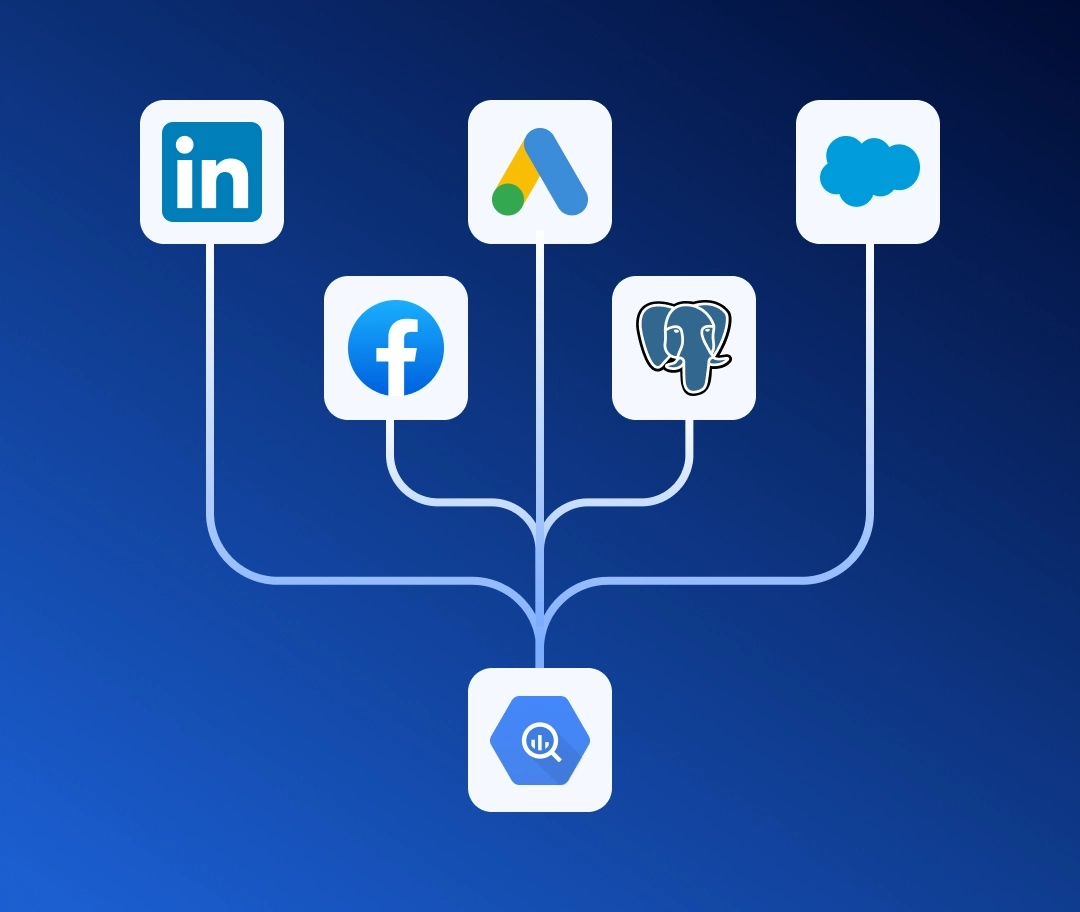



Performance Max is notoriously the most opaque campaign type in Google Ads. To really understand your performance, you need to move the raw data out of the native interface and into a data warehouse like Google BigQuery.
Exporting to BigQuery is the crucial first step. Once your data is there, you unlock powerful use cases, like joining your PMax data with your CRM to finally see the true business impact of your campaigns. But getting to that point is often easier said than done.
- The problem: Extracting PMax data is a well-known headache, primarily due to the highly complex structure of the Google Ads API.
- The solution: Bypassing the API maze entirely by using Renta's pre-built templates for a straightforward, automated export.
In this guide, I'll show you step-by-step how to easily extract your PMax campaigns into BigQuery using Renta. We'll skip the technical hurdles so you can focus on what matters: analyzing your data.
This article was inspired by a question from Eliine Rannajõe at Holm Bank. Thanks for the inspiration, Eliine!
Why standard Google Ads reporting isn't enough for PMax
When you open a Performance Max campaign in the Google Ads interface, you see aggregated metrics. You can break them down by asset type, but you cannot freely filter, join with other data sources, or build custom attribution models without exporting the data.
Here are the three most common analytical tasks that become trivially easy once PMax data is in BigQuery:
- Cross-channel attribution.
Join PMax performance with data from Meta Ads, GA4, and your CRM by date and UTM parameters to see the full customer journey. - Asset-level analysis.
Query which headlines, descriptions, images, or videos are labeled as best performers — and correlate that with actual conversion data. - Budget efficiency.
Aggregate cost and conversion data by asset group or account to compare PMax ROI against other campaign types at any granularity.
None of this requires custom scripts or API credentials. Renta handles the Google Ads API integration, schema management, and incremental updates automatically.
How to set up the pipeline
The setup consists of three stages: connect a Google Ads account as the data source, add Google BigQuery as the destination, and configure the pipeline using the PMax template.
Connect the Google Ads source
First, you need to select Google Ads as the data source and link your ad account.
In the pipeline creation wizard, you will see the Connect your data source screen. Find Google Ads in the list, click on it to highlight it, then click Next step.


Select the Google Ads account you want to pull data from. If you have multiple connected accounts, choose the one that manages the PMax campaigns you need. Click Next step.


Connect Google BigQuery as the destination
Now specify where the data should be stored.
On the Select a destination screen, find Google BigQuery in the list, click on it, then click Next step.


Select the Google BigQuery connection you want to use as the target warehouse. The connection card shows the Dataset ID and Project ID for quick identification. Click Next step.


Configure the PMax pipeline
Source and destination are ready. Now configure the pipeline parameters and launch the first sync.
On the Specify Google Ads pipeline settings screen, choose Pre-built templates as the integration type. This activates a pre-configured data model for PMax that creates the correct table structure automatically — without manually mapping fields.


Fill in two fields:
- Ad accounts — select the Google Ads account or accounts that run the PMax campaigns you want to analyze.
- Templates — select PMax Performance report from the dropdown.


In the Date Range block, set the historical data window:
- Date start — the earliest date from which you want to export data. For a full backfill, set this to the date your first PMax campaign went live.
- Date end — select Today to export data up to the current date.


In the Schedule block, select how often the pipeline should run. Daily is the default — it syncs once a day at a specific time. Use the Update time dropdown to choose when the sync should run (for example, 3 AM so that fresh data is ready when your team starts their day).
When all settings are configured, click Create pipeline.


Renta will immediately create the pipeline and run the first sync to load the historical data you specified.
Monitoring and running the pipeline
Once the pipeline is created, you can manage it from the Pipelines list.
Running and monitoring the pipeline
After the initial setup, you can trigger syncs manually and review run history at any time.
In the Pipelines list, find the PMax pipeline. Click the three-dot icon on the right to open the action menu, then select Run to trigger a sync immediately — without waiting for the scheduled time.


Open the pipeline logs to see the detailed execution history. Each row in the Runs table shows the timestamp, run type (Manual or Schedule), the number of rows extracted, and the final status. A completed run with rows extracted confirms that data has been successfully loaded into BigQuery.


Table structure in Google BigQuery
After the first successful sync, a table named google_ads_1774346567 will appear in your BigQuery dataset, where the number suffix is your Google Ads account ID. Below is a description of all fields.
Asset performance data
This is the main table. It stores daily performance metrics broken down by campaign and asset group.
| Field | Description |
|---|---|
| segments_date | The date for which the metrics are reported. |
| campaign_id | The unique identifier of the PMax campaign. |
| campaign_name | The display name of the campaign. |
| campaign_status | The current operational status of the campaign (ENABLED, PAUSED, REMOVED). |
| asset_group_id | The unique identifier of the asset group within the campaign. |
| asset_group_name | The display name of the asset group. |
| asset_group_status | The status set by the user for the asset group (ENABLED, PAUSED, REMOVED). |
| asset_group_primary_status | Google's computed delivery status of the asset group, taking into account all system signals (ELIGIBLE, PAUSED, REMOVED, LIMITED, NOT_ELIGIBLE). |
| asset_group_primary_status_reasons | The list of reasons explaining why the asset group has its current primary status — for example, ASSET_GROUP_PAUSED or CAMPAIGN_ENDED. |
| metrics_impressions | The number of times ads from this asset group were shown. |
| metrics_clicks | The number of clicks on ads from this asset group. |
| metrics_cost_micros | Total cost in micros (divide by 1,000,000 to get the value in account currency). |
| metrics_average_cost | The average cost per interaction (click or view) in account currency. |
Analyzing PMax data in Google BigQuery
Once the data is in BigQuery, you can immediately start writing queries. Below are two practical examples.
Campaign performance summary
This query aggregates all asset groups by campaign and calculates the key efficiency metrics for the last 30 days.
SELECT
    campaign_name,
    campaign_status,
    SUM(metrics_impressions)                                   AS impressions,
    SUM(metrics_clicks)                                        AS clicks,
    ROUND(SUM(metrics_cost_micros) / 1000000, 2)               AS cost,
    ROUND(
        SUM(metrics_clicks) / NULLIF(SUM(metrics_impressions), 0) * 100,
        2
    )                                                          AS ctr_pct,
    ROUND(AVG(metrics_average_cost), 2)                        AS avg_cpc
FROM
    `my-gcp-project.Renta_dataset.google_ads_1774346567`
GROUP BY
    campaign_name, campaign_status
ORDER BY
    cost DESC
After running the query, you should see a result like this — campaigns ranked by cost with key performance metrics:


Asset group delivery status breakdown
This query lists all asset groups with their delivery status and primary status reasons — useful for quickly identifying which groups are limited or not eligible to run. The WHERE clause filters data to the last 7 days, so you see only recent delivery issues, not historical noise.
SELECT
    segments_date,
    campaign_name,
    asset_group_name,
    asset_group_status,
    asset_group_primary_status,
    asset_group_primary_status_reasons,
    SUM(metrics_impressions)                     AS impressions,
    SUM(metrics_clicks)                          AS clicks,
    ROUND(SUM(metrics_cost_micros) / 1000000, 2) AS cost
FROM
    `my-gcp-project.Renta_dataset.google_ads_1774346567`
WHERE
    segments_date >= DATE_SUB(CURRENT_DATE(), INTERVAL 7 DAY)
GROUP BY
    segments_date,
    campaign_name,
    asset_group_name,
    asset_group_status,
    asset_group_primary_status,
    asset_group_primary_status_reasons
ORDER BY
    segments_date DESC, cost DESC
Both queries can be saved as BigQuery views and connected directly to Looker Studio, Power BI, or Tableau for live dashboards.
Conclusion
Performance Max campaigns are intentionally designed to be managed by Google's algorithm — but that doesn't mean you should accept limited visibility into the results. Exporting raw asset-level data to BigQuery gives you full analytical control: you can segment by asset type, track performance labels over time, compare PMax against other campaign types, and build attribution models that reflect your actual business logic.
A few recommendations for keeping the pipeline reliable long-term:
- Set up failure alerts.
If a sync fails due to an expired OAuth token or API quota issue, Renta will notify you via Slack or email. Configure notification channels separately for data engineers and the marketing team — each group needs different context. Details are in the monitoring documentation. - Use full refresh for metadata, incremental for stats.
PMax campaign and asset group names can change. The pre-built template handles this automatically: metadata is fully refreshed on each run, while performance statistics are updated incrementally with a fixed recalculation window to capture delayed conversions. - Automate via API.
If you use Airflow, Dagster, or another orchestration tool, you can trigger Renta pipeline runs via the REST API instead of relying on the built-in scheduler. The API documentation includes a ready-to-use Postman collection.
If you have questions during setup — reach out to our support team. We'll help you at every step.