
Google Sheets
Renta allows you to sync data from your Google Sheets directly to your data warehouse, automating the process of moving data from spreadsheets to your analytics stack.
Authentication
Renta supports two methods for authenticating with Google Sheets:
- OAuth (Google Account).
Best for individuals and small teams. - Service Account.
Best for enterprise security and centralized access control.
Connect Google Sheets source
Follow these steps to add Google Sheets as a source in Renta. You can use either OAuth or Service Account authentication.
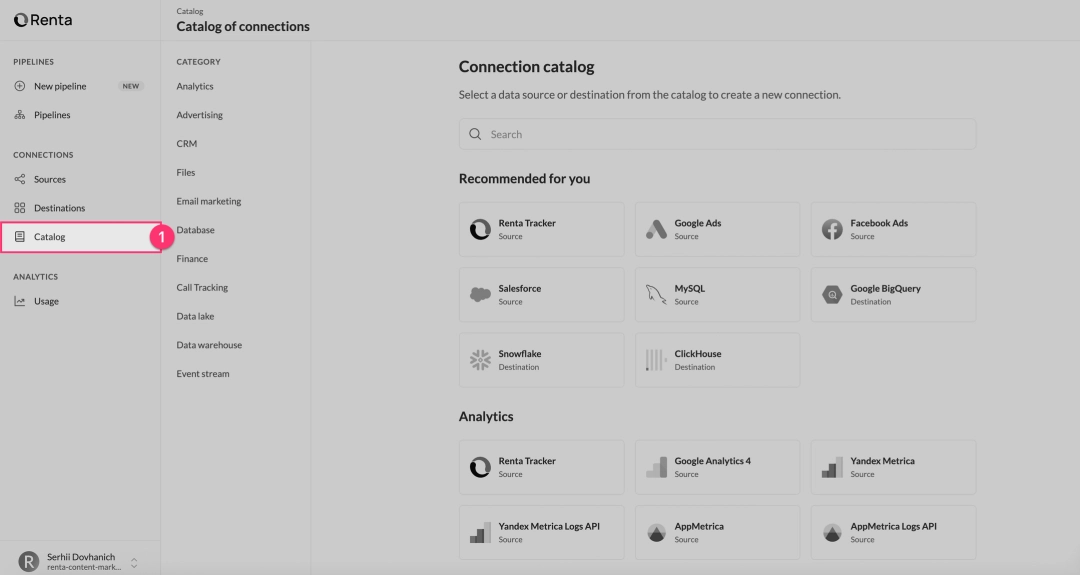
Navigate to the Connections > Catalog section in the left sidebar.


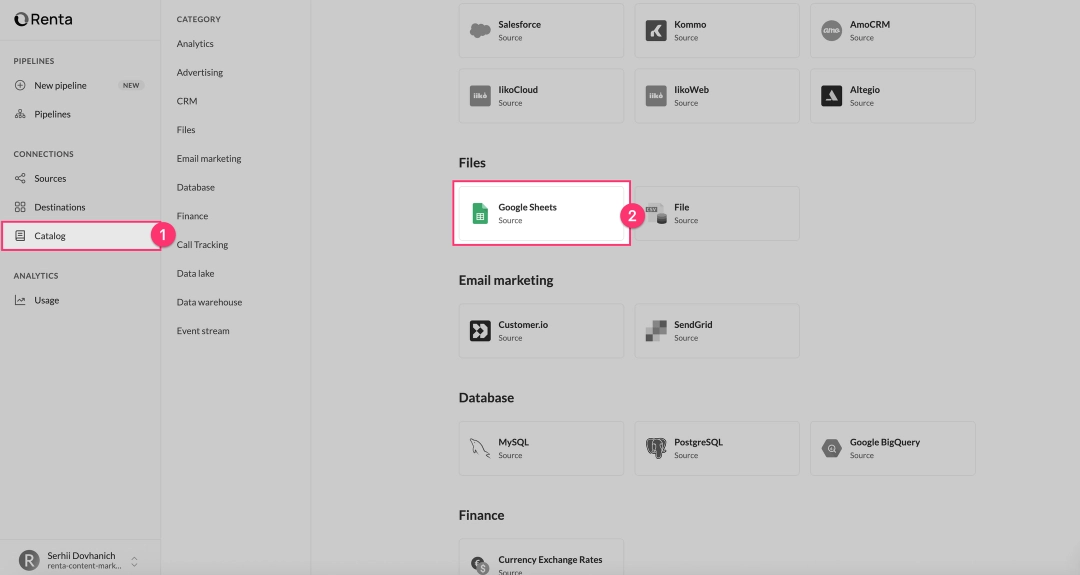
Find and select Google Sheets in the Sources list.

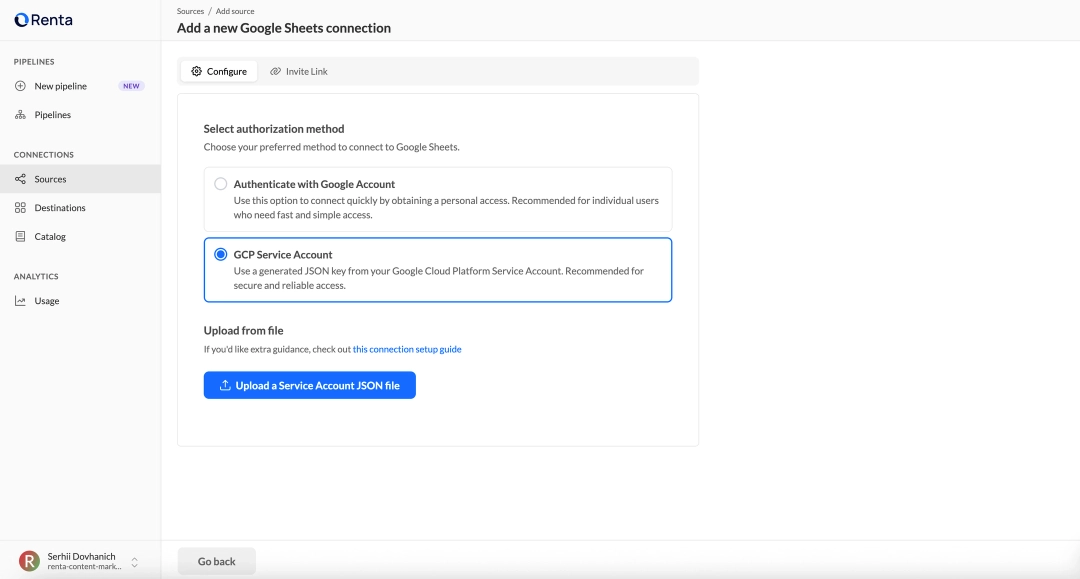
Select your preferred authorization method:
- Authenticate with Google Account.
Redirects to Google for OAuth login. - GCP Service Account.
Requires uploading a JSON key file (see steps below).


If using a Service Account:
- Ensure the Google Sheets API is enabled in your GCP project.
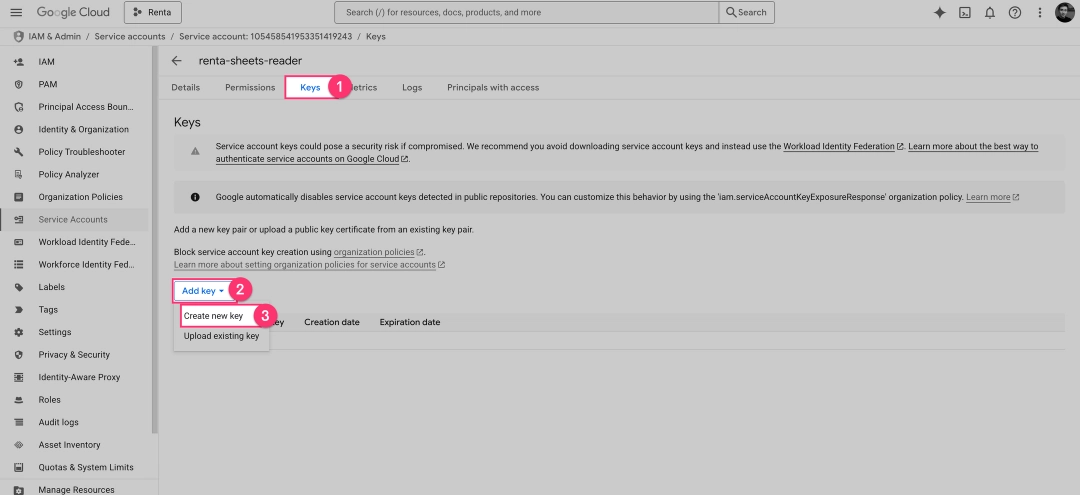
- In Google Cloud Console, go to IAM & Admin > Service Accounts.
- Create a new service account or select an existing one.
- Go to the Keys tab, click Add Key > Create new key.
- Select JSON and download the file.


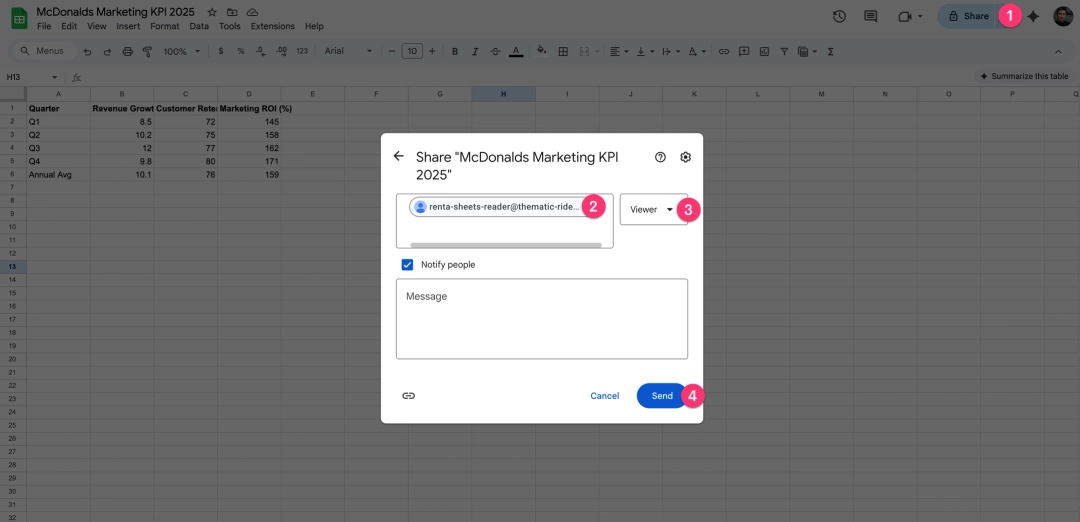
- Open your Google Sheet.
- Click Share.
- Add the Service Account email as a Viewer.


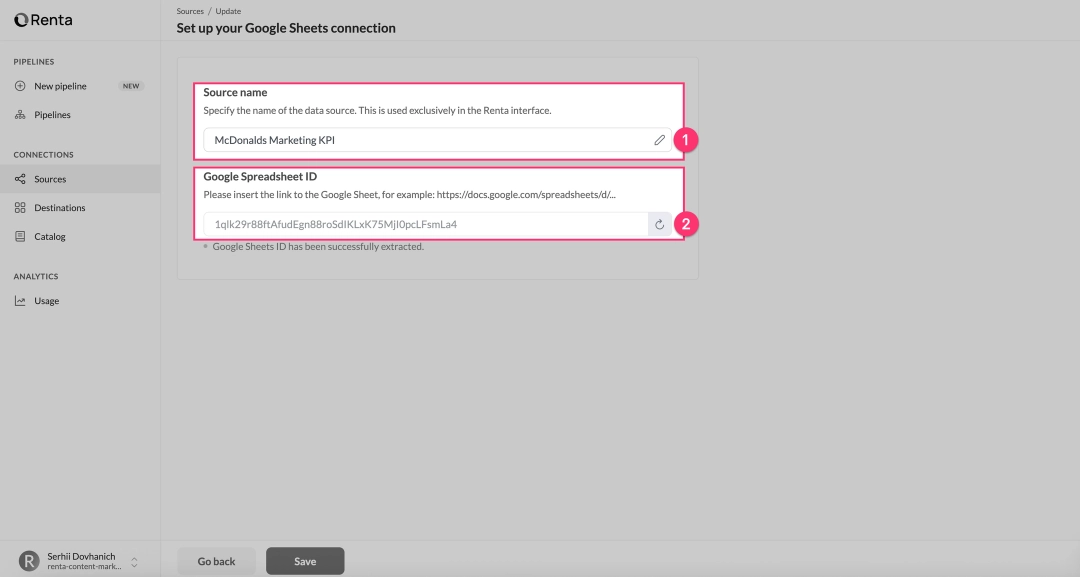
Fill in the connection details:
- Source name.
A display name for this connection in Renta. - Google Spreadsheet ID.
Paste the full URL of your Google Sheet. Renta will extract the ID automatically.
Click Save to finish.


Pipeline configuration
When creating a pipeline with Google Sheets source, you will need to configure the following settings:

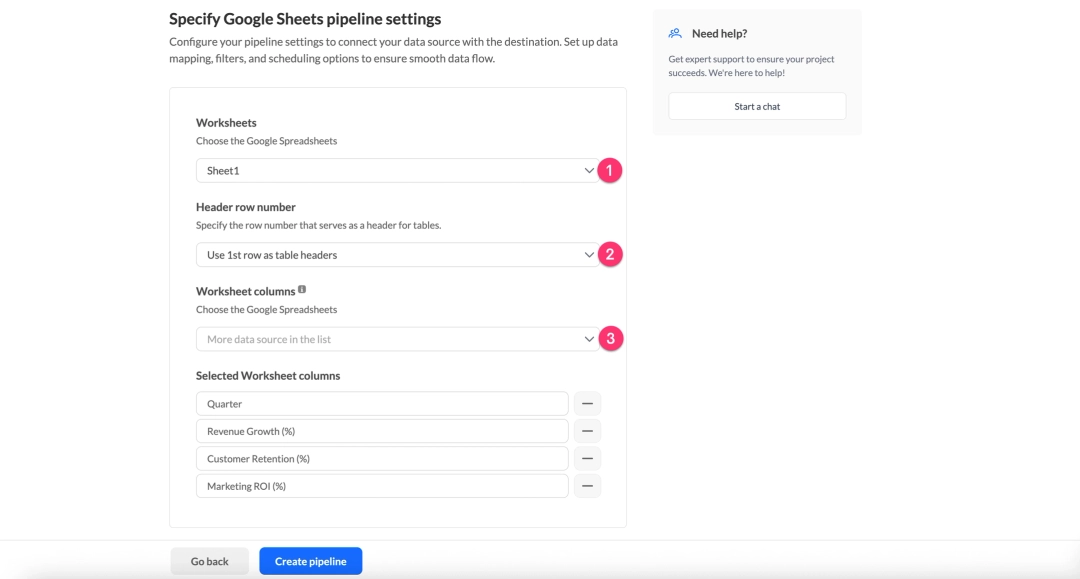
- Select Worksheet.
Choose the specific sheet (tab) to sync. - Header row number.
Specify the row number containing column headers (default: 1). Only English text is supported for column names. Renta automatically normalizes headers by removing spaces, special characters, and converting to lowercase to meet destination table requirements. - Worksheet columns.
Select which columns to sync from your sheet. This is a required field. To add new columns after pipeline creation, update this setting and select the new columns explicitly.
Sync scheduling
Sync strategy
The following table describes the synchronization strategies used by Renta for Google Sheets:
| Strategy | Description |
|---|---|
| Incremental load | Not supported. Google Sheets does not provide reliable metadata for tracking row-level changes. |
| Full overwrite | Supported. Renta reloads the entire dataset from the selected sheet during each sync. This ensures that the destination table exactly matches the current state of the spreadsheet. |
Data types and limitations
- Data Types.
All data is loaded as text (string type). Renta does not enforce type validation, so columns can contain mixed data types (text, numbers, dates). - Empty Rows.
Empty rows are automatically skipped. - Schema Changes: Adding Columns.
If you add new columns to your Google Sheet, they will not appear in the destination table unless you manually update the pipeline settings and select them in the Worksheet columns field. - Schema Changes: Removing Columns.
If you remove a column from the Google Sheet, the corresponding column in the destination table will continue to exist but will receive empty values for all new syncs.
Ready to get started?
Build your data pipeline today or get a personalized demo. Start free!
Need help?
Get expert support to ensure your project succeeds. We're here to help!
Feature requests?
Help shape our product! Share your ideas for new features and integrations.